Introduction
Roblox offers thousands of unique experiences, ranging from action-packed adventures and competitive shooters to relaxing simulation games and creative sandbox worlds. Because every game is built differently, players often experience different levels of performance depending on their device, internet connection, and graphics settings.
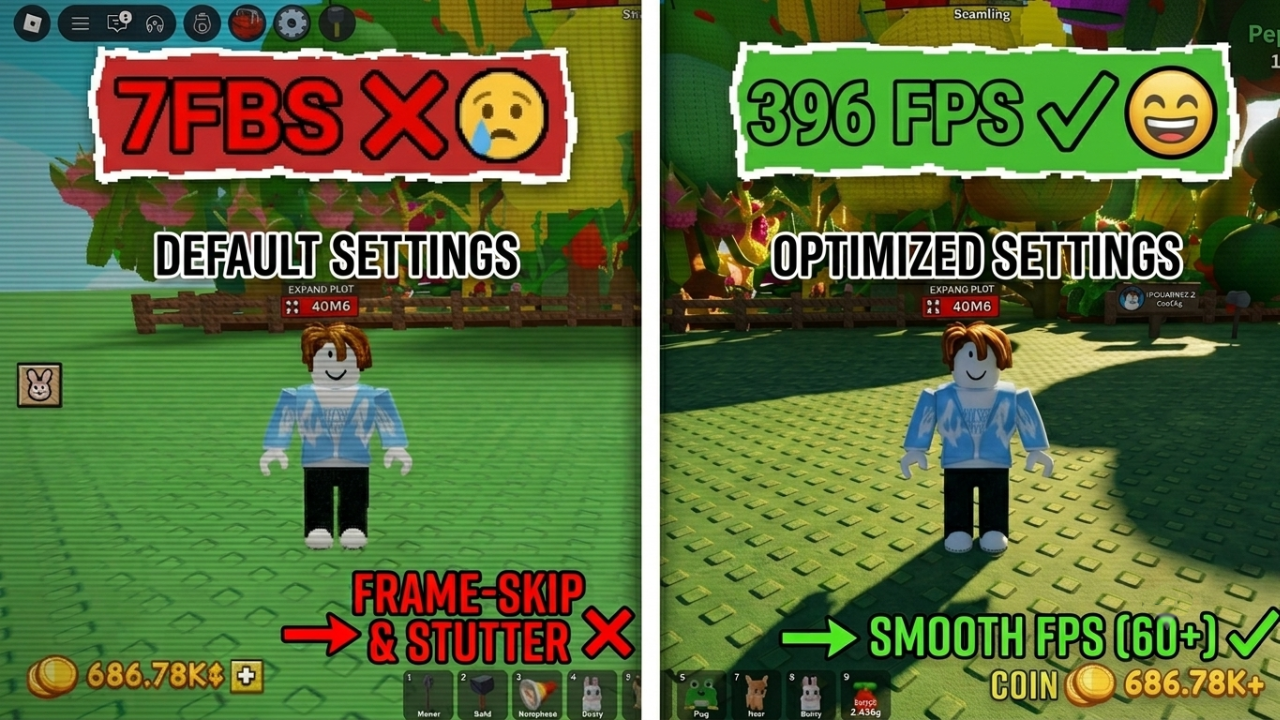
Many players assume that buying a more powerful device is the only way to improve performance. In reality, properly adjusting Roblox settings can significantly increase frame rates, reduce lag, shorten loading times, and create a much smoother gameplay experience without spending any money.
Whether you’re exploring Blox Fruits, solving mysteries in Murder Mystery 2, building farms in Grow A Garden, or surviving challenging adventures, optimized settings help improve responsiveness and make gameplay feel more enjoyable.
This guide explains the best Roblox settings for both PC and mobile devices, how each option affects performance, and practical tips that can help you achieve smoother gameplay while maintaining good visual quality.
Why Roblox Performance Matters
Smooth gameplay is about much more than achieving a high FPS number.
Better performance improves reaction time, makes movement feel more responsive, reduces input delay, and creates a more consistent experience during fast-paced situations.
Players with optimized settings often notice:
- Faster loading.
- More stable frame rates.
- Less screen stuttering.
- Better camera movement.
- Improved responsiveness.
- Reduced overheating on mobile devices.
Small improvements in these areas can make a noticeable difference during long gaming sessions.
Graphics Mode
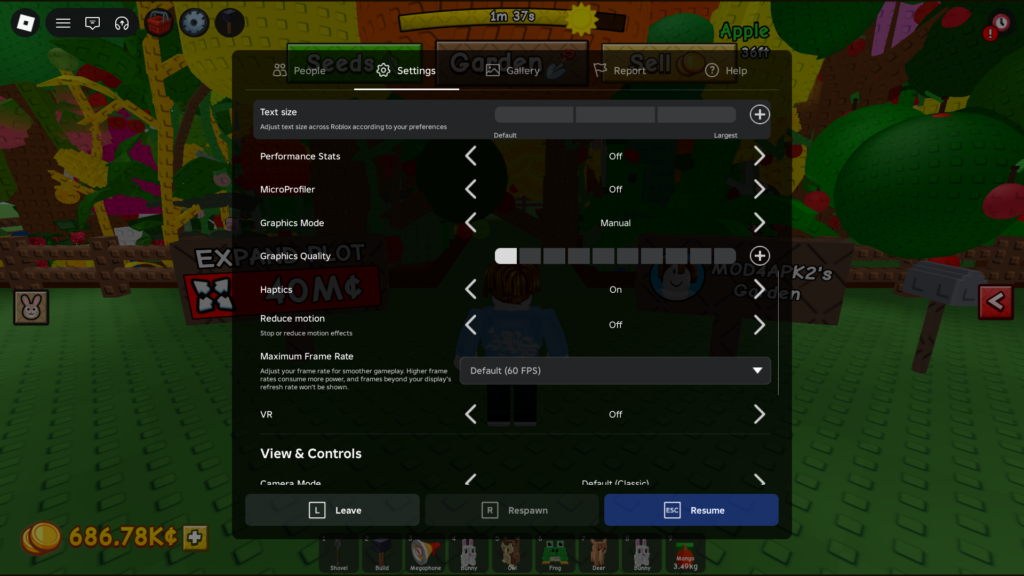
One of the most important settings inside Roblox is Graphics Mode.
Whenever possible, choose Manual instead of Automatic.
Automatic mode constantly changes graphics quality based on device performance, which may cause sudden FPS drops during gameplay.
Manual mode allows players to control graphics quality themselves, resulting in a more stable experience.
Graphics Quality
Graphics Quality directly affects performance.
Low-End Devices
Use:
- Graphics Level 1–3
This provides the highest FPS while reducing unnecessary visual effects.
Mid-Range Devices
Recommended:
- Graphics Level 4–6
This offers a good balance between visual quality and performance.
High-End Devices
Use:
- Graphics Level 7–10
Modern gaming PCs can usually handle higher graphics settings without major FPS loss.
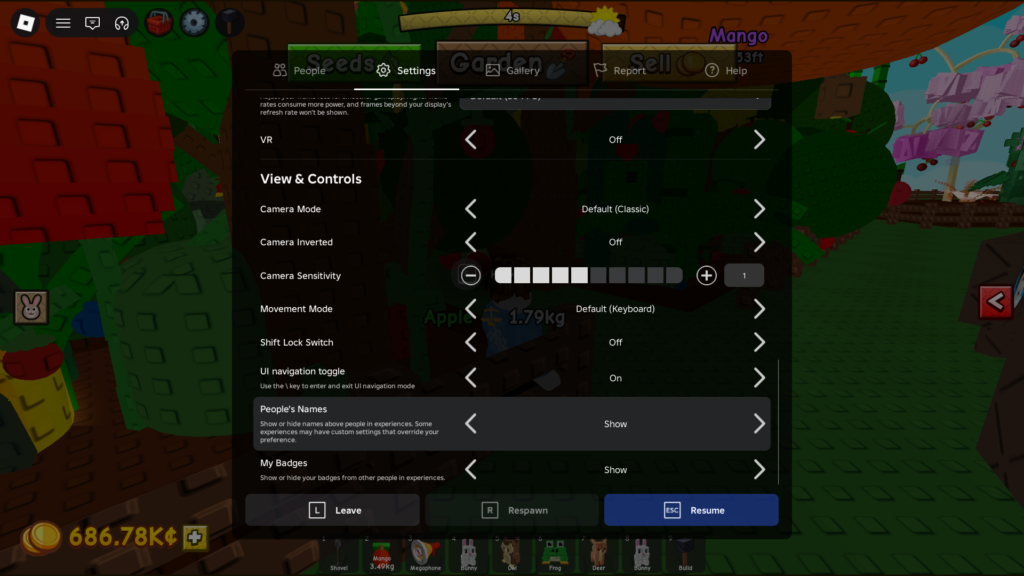
Camera Sensitivity
Camera sensitivity depends entirely on personal preference.
A medium sensitivity level is usually the easiest to control during both exploration and combat.
Players who frequently play PvP games may prefer slightly higher sensitivity for faster reactions.
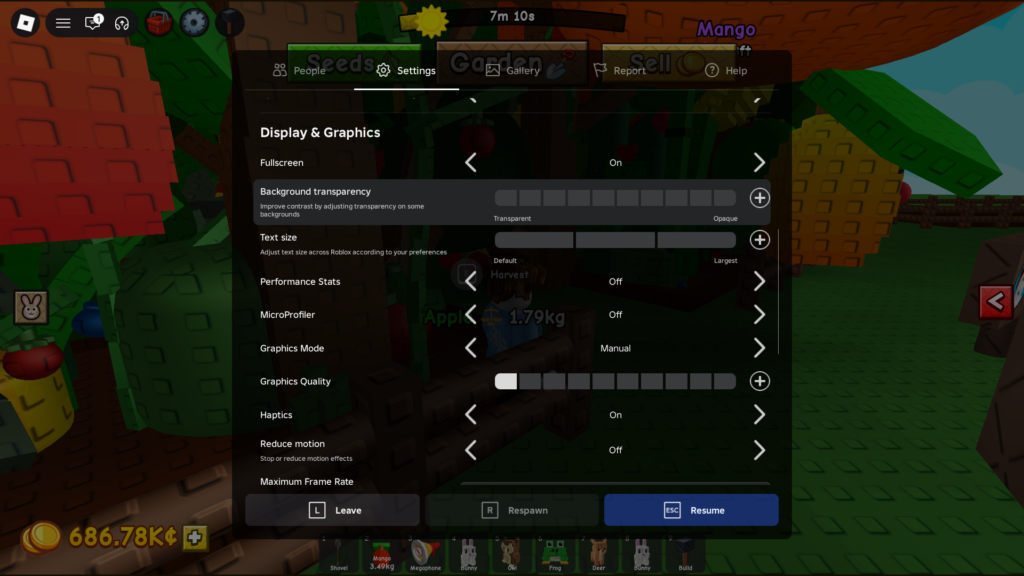
Fullscreen Mode
PC players should generally use Fullscreen Mode.
Benefits include:
- Better performance.
- Reduced input delay.
- Improved focus.
- Fewer background distractions.
Windowed mode is useful only when multitasking.
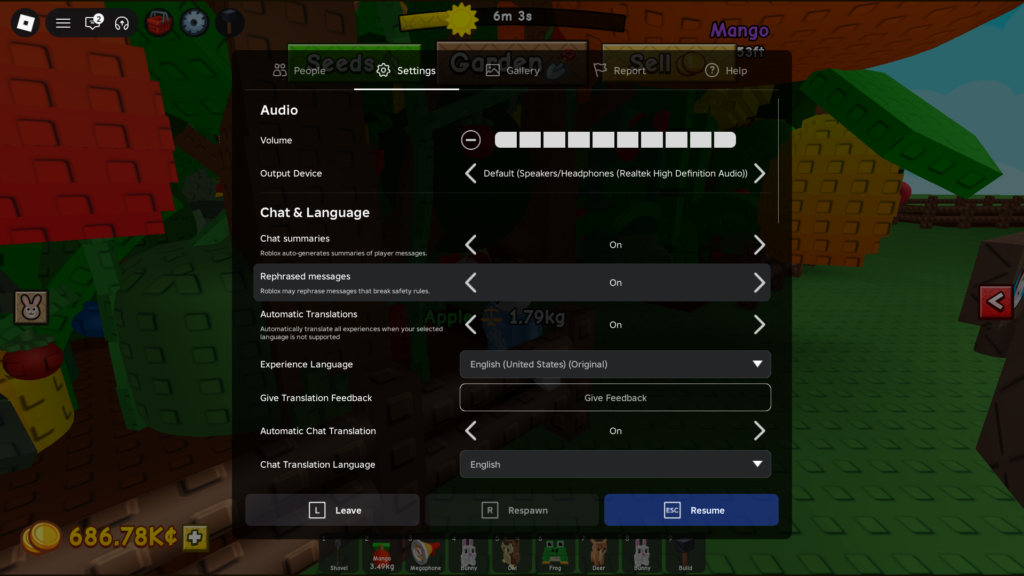
Volume Settings
Many players ignore audio settings, but sound plays an important role in Roblox games.
Footsteps, combat effects, environmental sounds, and music can all provide useful gameplay information.
Lowering music volume while keeping sound effects higher often creates a better gameplay experience.
Best PC Settings for Roblox
PC performance varies greatly between users, so there is no single perfect configuration for everyone. The main goal is to find the right balance between visual quality and smooth performance.
1. Update Your Graphics Drivers
Before changing Roblox settings, make sure your graphics drivers are updated.
Outdated drivers can cause:
- Lower FPS.
- Screen stuttering.
- Graphics problems.
- Poor game performance.
Players using NVIDIA, AMD, or Intel graphics cards should regularly check for new driver updates to ensure better compatibility with modern games.
2. Adjust Windows Performance Settings
Windows includes several options that can affect gaming performance.
To improve Roblox performance:
- Close unnecessary background applications.
- Disable unwanted startup programs.
- Enable High Performance power mode when available.
- Keep enough free storage space.
These simple adjustments allow Roblox to use system resources more efficiently.
3. Roblox Settings for Low-End PCs
If you are using an older or weaker computer, use lower graphics settings for better stability.
Recommended settings:
Graphics Mode:
Manual
Graphics Quality:
1–3
Fullscreen:
Enabled
Background Applications:
Closed
These settings reduce the workload on your CPU and GPU, helping maintain a more stable FPS.
4. Roblox Settings for Mid-Range PCs
Mid-range computers can achieve a good balance between performance and visual quality.
Recommended settings:
Graphics Quality:
4–7
Fullscreen Mode:
Enabled
Visual Effects:
Adjust depending on the game
Some Roblox experiences include additional effects inside the game itself, so you may need to lower graphics quality in larger and more detailed maps.
5. High-End PC Settings
Powerful gaming computers can run Roblox at higher settings.
You can increase:
- Graphics Quality.
- Visual Effects.
- Resolution.
However, it is still recommended to monitor FPS and device temperature because some Roblox games are demanding due to their design and large maps.
Best Roblox Mobile Settings
Mobile devices require different optimization because performance is affected by battery usage, temperature, and available RAM.
For smoother gameplay, consider the following adjustments:
1. Lower Graphics Quality
For mid-range and low-end phones, use:
Graphics Quality:
1–4
Lower graphics settings help reduce:
- Battery consumption.
- Device temperature.
- FPS drops.
- Gameplay stuttering.
2. Close Background Apps
Before opening Roblox, close unnecessary applications such as:
- Web browsers.
- Social media apps.
- Other games.
- Apps running in the background.
These applications consume RAM and processing power, which can negatively affect Roblox performance.
3. Keep Enough Storage Space
A device with almost full storage may experience slower performance.
Keeping enough free space helps the operating system run smoothly and improves overall responsiveness.
Internet Optimization Tips
Not every Roblox performance issue is caused by your device.
Sometimes the problem is your internet connection.
Use a Stable Wi-Fi Connection
A stable Wi-Fi connection usually provides a better experience than mobile data, especially in multiplayer Roblox games.
A weak connection can cause:
- High ping.
- Delayed actions.
- Player movement lag.
Avoid Downloads While Playing
Downloading large files or streaming high-quality videos while playing Roblox can increase network usage and cause:
- Connection delays.
- Higher ping.
- Unstable gameplay.
Choose Better Server Locations
Some Roblox experiences use multiple servers.
Playing on a server closer to your location usually provides lower latency and a smoother online experience.
Reduce Roblox Lag During Large Games
Some Roblox experiences contain huge maps, many players, and complex systems that require more resources.
To improve performance:
- Lower graphics quality.
- Close unnecessary apps.
- Restart Roblox before long gaming sessions.
- Avoid playing while your device is overheating.
- Use a stable internet connection.
Common Performance Mistakes
Many players experience lag because of simple mistakes.
Using Maximum Graphics on Weak Devices
Higher graphics settings do not always mean a better experience.
If your device cannot handle the visual load, you may experience:
- FPS drops.
- Freezing.
- Delayed controls.
Ignoring Device Temperature
When a device becomes too hot, it may automatically reduce performance to protect the hardware.
Keeping your device cool can help maintain stable performance.
Running Too Many Applications
Having many programs open while playing Roblox reduces the available resources for the game.
Not Updating Roblox
Using an outdated version may cause compatibility issues and reduce performance.
Best Roblox Settings Based on Device Type
Every device has different hardware capabilities, so the ideal Roblox settings depend on your system.
Below are recommended configurations for different types of devices.
Low-End Devices
If you are using an older PC, budget laptop, or entry-level smartphone, your priority should be stable FPS rather than maximum graphics quality.
Recommended settings:
Graphics Mode:
Manual
Graphics Quality:
1–3
Fullscreen:
Enabled (PC)
Texture Quality:
Low
Background Apps:
Closed
Additional tips:
- Restart your device before playing.
- Avoid playing while charging if your device becomes very hot.
- Keep Roblox updated.
- Lower in-game effects when available.
These changes can significantly improve stability on weaker hardware.
Mid-Range Devices
Most modern phones and average gaming computers can achieve a good balance between performance and visuals.
Recommended settings:
Graphics Quality:
4–7
Fullscreen:
Enabled
FPS Priority:
Balanced
Background Applications:
Limited
This configuration provides smooth gameplay while keeping Roblox looking visually appealing.
High-End Gaming Devices
Powerful computers with modern GPUs can use higher-quality settings.
Recommended settings:
Graphics Quality:
8–10
Fullscreen:
Enabled
Resolution:
Native display resolution
Visual Effects:
High
Even with powerful hardware, some Roblox experiences may require adjustments because performance also depends on game optimization.
How to Increase FPS in Roblox
If Roblox feels slow or unstable, try these solutions:
1. Lower Graphics Quality
Graphics settings are the fastest way to improve FPS.
Reducing visual quality decreases the amount of work required from your GPU and CPU.
2. Restart Roblox Regularly
Long gaming sessions may cause memory usage to increase.
Restarting Roblox can help clear temporary performance issues.
3. Disable Unnecessary Programs
Before playing, close applications such as:
- Web browsers with many tabs.
- Video editors.
- Download managers.
- Background launchers.
This gives Roblox more available system resources.
4. Update Your Device
Keep updated:
- Windows.
- Graphics drivers.
- Roblox application.
- Mobile operating system.
Updates often include important performance improvements and bug fixes.
5. Check Your Internet Connection
FPS and internet lag are different problems.
A powerful device will not fix high ping caused by an unstable connection.
For better online performance:
- Use stable Wi-Fi.
- Avoid network-heavy activities.
- Restart your router if needed.
Roblox Settings That Improve Gameplay Experience
Performance is important, but some settings also improve comfort while playing.
Adjust Camera Sensitivity
A balanced camera sensitivity makes movement smoother and helps during games that require quick reactions.
Competitive players often prefer higher sensitivity, while casual players may prefer a slower and more controlled camera.
Adjust Volume Levels
Good audio settings can improve awareness.
Keep important sounds clear:
- Footsteps.
- Game effects.
- Notifications.
Lower background music if it distracts from gameplay.
Enable Fullscreen on PC
Fullscreen mode can provide:
- Better focus.
- Less distraction.
- Sometimes improved performance.
- Reduced input delay.
Frequently Asked Questions
What are the best Roblox settings for FPS?
The best FPS settings are:
- Manual Graphics Mode.
- Low to medium Graphics Quality.
- Closed background applications.
- Updated drivers and software.
Why is Roblox lagging even with good hardware?
Possible reasons include:
- Poor internet connection.
- Badly optimized Roblox experiences.
- Background applications.
- Outdated drivers.
- High device temperature.
Does lowering Roblox graphics improve FPS?
Yes.
Lower graphics settings reduce the workload on your device and usually increase frame stability.
Should I use Automatic Graphics Mode?
For the best control, Manual mode is usually recommended because Automatic mode may constantly change quality during gameplay.
What is the best Roblox setting for mobile?
For most mobile devices:
- Graphics Quality: 1–4.
- Close background apps.
- Keep enough storage space.
- Avoid overheating.
Does FPS affect Roblox gameplay?
Yes.
Higher and more stable FPS makes movement smoother and improves responsiveness, especially in fast-paced games.
Can internet speed increase FPS?
No.
Internet speed mainly affects ping and connection quality, while FPS depends on your device hardware and graphics settings.
Why does Roblox become slower after playing for a long time?
Long sessions may increase memory usage or device temperature.
Restarting Roblox and allowing your device to cool down can help.
Should I play Roblox while charging?
You can, but some devices may become hotter while charging, which can reduce performance.
How can I reduce Roblox ping?
Try:
- Using stable Wi-Fi.
- Closing downloads.
- Restarting your router.
- Choosing servers with better connection quality.
Final Verdict
Optimizing Roblox settings is one of the easiest ways to improve your gaming experience without upgrading your device.
The best configuration depends on your hardware, but most players can achieve smoother gameplay by controlling graphics quality, reducing background activity, maintaining a stable internet connection, and keeping their software updated.
Whether you play Roblox on a low-end phone, a standard laptop, or a powerful gaming PC, the right settings can help reduce lag, improve FPS stability, and make every game feel more responsive.
A smooth Roblox experience is not only about having expensive hardware. Smart optimization and proper settings can make a significant difference for players of all levels.