Introduction
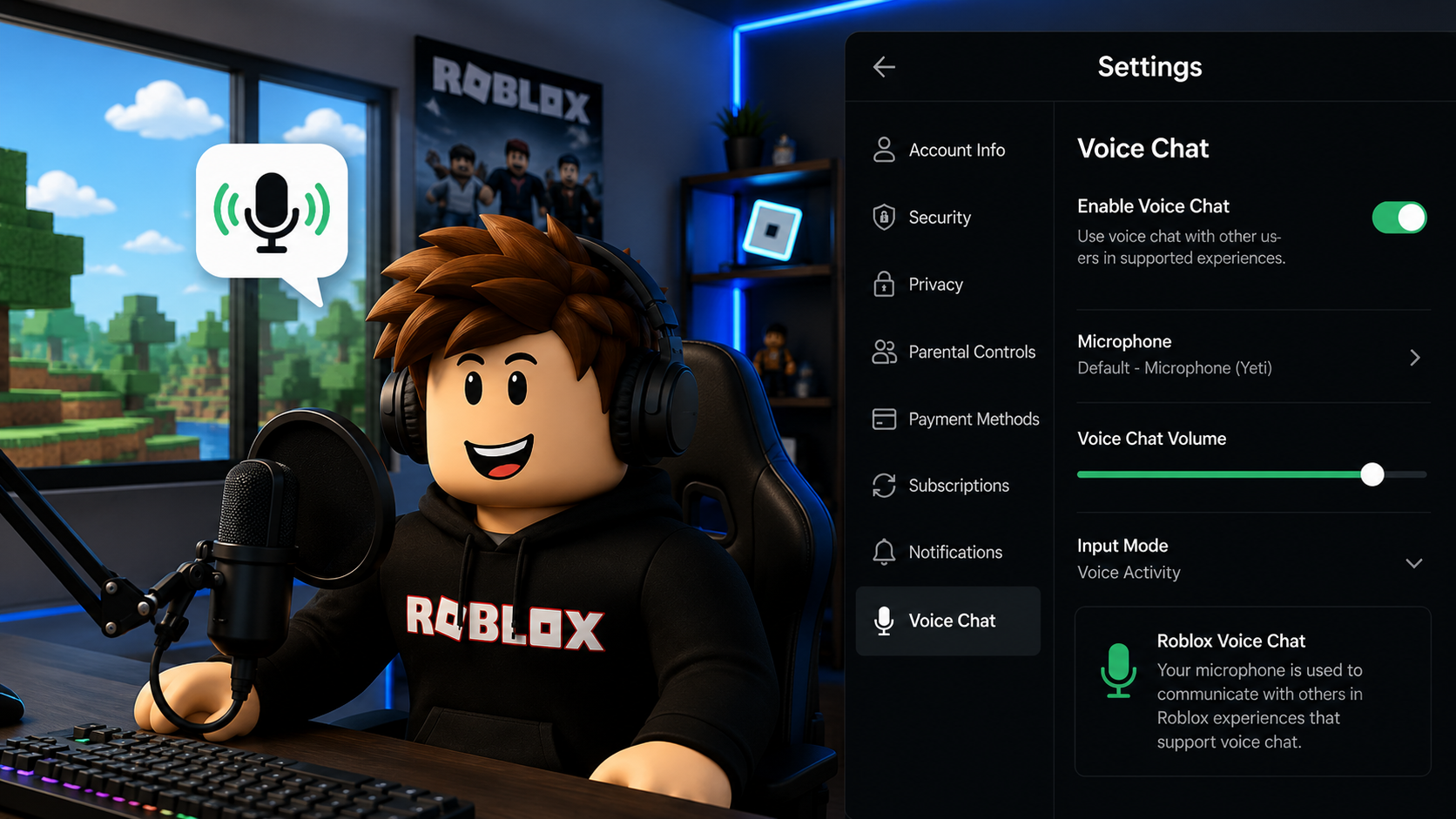
Voice communication has become an important feature in modern online games, allowing players to coordinate strategies, socialize, and enjoy a more immersive multiplayer experience. Roblox introduced Voice Chat, officially known as Spatial Voice, to make conversations between nearby players feel more natural inside supported experiences.
Unlike traditional text chat, Spatial Voice changes how players interact by allowing voices to become louder or quieter depending on the distance between characters. This creates realistic communication and encourages teamwork in roleplay games, adventure experiences, and competitive multiplayer titles.
However, many players are unsure how to activate Voice Chat, what requirements must be met, or why the feature may not appear on their account. Others experience microphone problems, permission errors, or connection issues after enabling the feature.
In this guide, you’ll learn everything you need to know about Roblox Voice Chat, including eligibility requirements, account verification, setup instructions, privacy settings, troubleshooting tips, and best practices for staying safe while communicating online.
What Is Roblox Voice Chat?
Roblox Voice Chat, officially called Spatial Voice, is a communication feature that allows players to speak with one another using their microphones during gameplay.
Unlike standard voice calls, Spatial Voice is distance-based. Players standing close together can hear each other clearly, while voices gradually become quieter as characters move farther apart. This creates a more immersive environment that feels similar to real-life conversations.
Not every Roblox experience supports Voice Chat. Developers must enable Spatial Voice in their games before players can use the feature. Even if your account has Voice Chat enabled, it will only work inside compatible experiences.
This feature is especially popular in social hangout games, roleplay experiences, open-world adventures, and multiplayer games where teamwork and communication improve the overall gameplay experience.
Requirements for Roblox Voice Chat
Before you can use Voice Chat, your account must meet several requirements established by Roblox.
The most important requirement is account eligibility. Depending on Roblox’s current policies and your region, you may need to complete identity or age verification before Voice Chat becomes available.
Additional requirements include:
- A supported Roblox account.
- The latest version of Roblox.
- A working microphone.
- Internet connection.
- A game that supports Spatial Voice.
- Permission for Roblox to access your microphone.
Meeting these requirements ensures that the Voice Chat option can appear within your account settings.
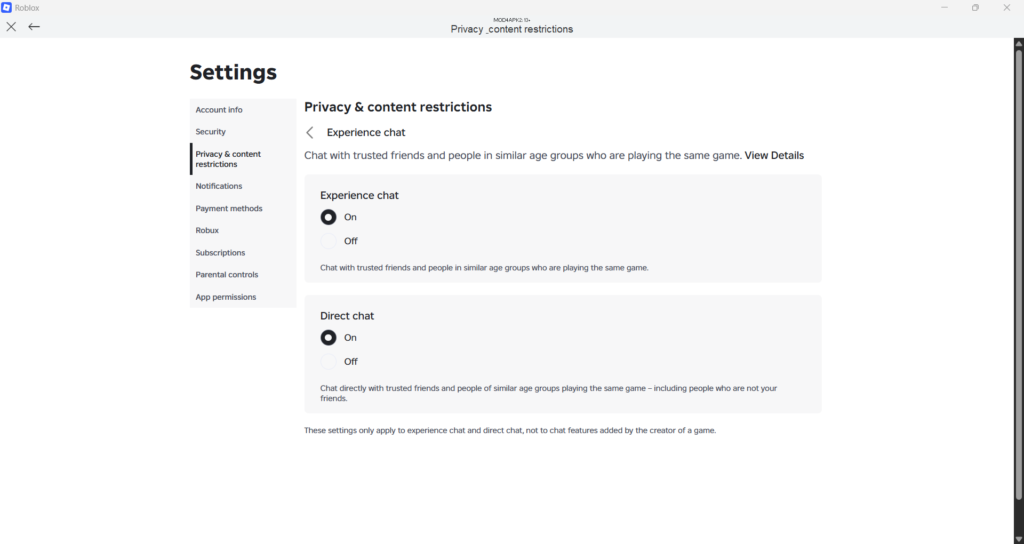
How to Enable Roblox Voice Chat
Once your account is eligible, enabling Voice Chat only takes a few minutes.
Follow these steps:
Step 1
Open Roblox and sign in to your account.
Step 2
Click the Settings icon.
Step 3
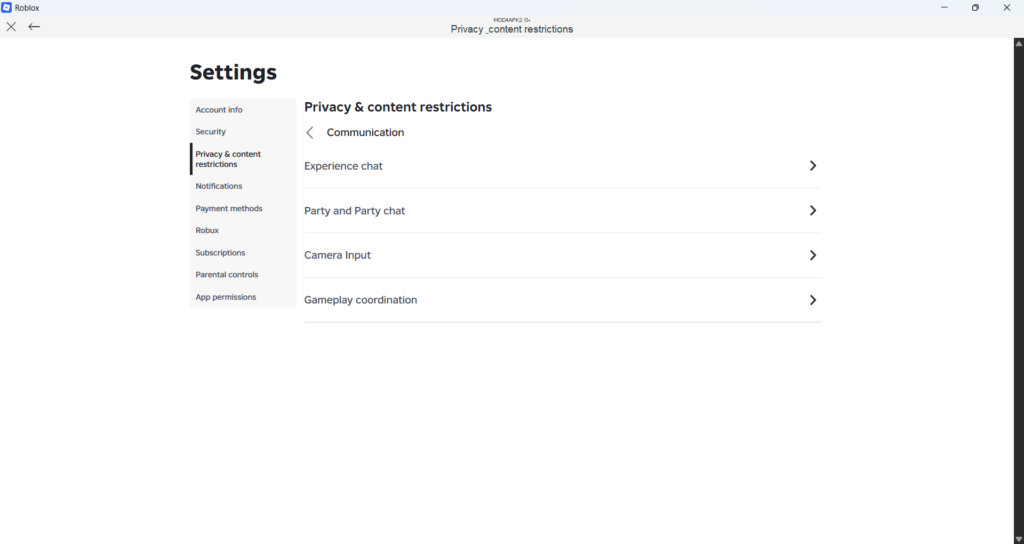
Navigate to Privacy or Communication Settings, depending on your platform.
Step 4
Locate the Voice Chat or Spatial Voice option.
Step 5
Enable the feature if it is available.
Step 6
Allow Roblox to access your microphone when prompted.
After completing these steps, Voice Chat will automatically become available in supported Roblox experiences.
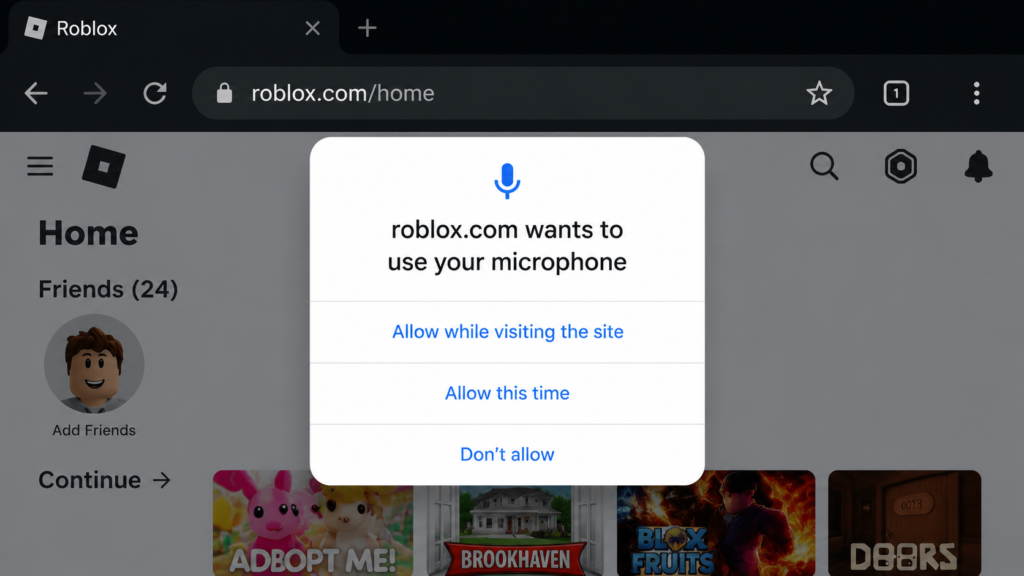
Allowing Microphone Access
Voice Chat cannot function unless Roblox has permission to use your microphone.
If permission is denied, players may join Voice Chat experiences but will be unable to speak.
To resolve this:
- Open your device settings.
- Locate application permissions.
- Find Roblox.
- Enable Microphone access.
- Restart Roblox if necessary.
Both Windows and mobile operating systems include privacy settings that allow users to manage microphone permissions at any time.
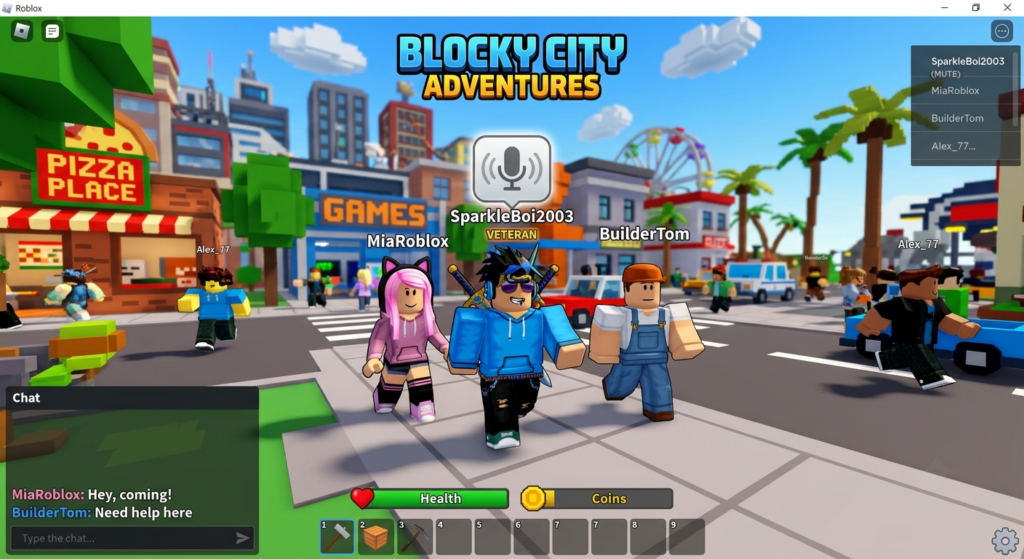
Games That Support Voice Chat
Not every Roblox experience includes Voice Chat functionality.
Game developers choose whether to enable Spatial Voice for their experiences.
Popular categories that commonly support Voice Chat include:
- Social hangout games.
- Roleplay experiences.
- Open-world adventures.
- Community gathering spaces.
- Multiplayer communication games.
If you enter a game that does not support Spatial Voice, the feature will remain unavailable even if your account is fully verified.
Best Microphone Settings for Roblox Voice Chat
Having Voice Chat enabled is only the first step. The quality of your communication also depends on your microphone settings and device configuration.
A poor microphone setup can cause:
- Low voice volume.
- Background noise.
- Echo problems.
- Distorted audio.
- Delayed communication.
To improve your voice quality, consider the following tips:
Use a Good Microphone
Built-in laptop or phone microphones can work, but dedicated microphones usually provide clearer sound.
A better microphone can help reduce:
- Keyboard sounds.
- Fan noise.
- Background conversations.
- Environmental noise.
However, expensive equipment is not required. Even basic headphones with a built-in microphone can provide a better experience than many built-in device microphones.
Check Your Microphone Volume
If other players cannot hear you clearly, your microphone volume may be too low.
Make sure:
- Your microphone is selected as the main input device.
- The volume level is high enough.
- The microphone is not muted.
- Roblox has permission to access it.
Reduce Background Noise
Voice Chat works best in a quiet environment.
Try to avoid:
- Loud music.
- Multiple people speaking nearby.
- Running fans close to the microphone.
- Strong background sounds.
A cleaner environment improves communication for everyone in the server.
Roblox Voice Chat Privacy Settings
Roblox provides several privacy controls that allow players to manage their communication experience.
These settings help users control who can interact with them and how they use Voice Chat.
Depending on your account and region, available communication options may include controls for:
- Voice communication.
- Text chat.
- Who can contact you.
- Account privacy.
Players should regularly review these settings, especially for younger users.
How to Mute Yourself in Roblox Voice Chat
Sometimes players need to disable their microphone temporarily.
You can usually mute yourself by:
- Joining a Voice Chat supported experience.
- Finding the microphone icon.
- Selecting the microphone button to turn your voice off.
Muting is useful when:
- Talking to someone privately.
- Leaving your device temporarily.
- Experiencing background noise.
- Taking a break from communication.
Voice Chat Safety Tips
Voice Chat makes Roblox more interactive, but players should always communicate responsibly.
Follow these safety recommendations:
Avoid Sharing Personal Information
Never share private details such as:
- Real name.
- Home address.
- Phone number.
- Passwords.
- School information.
Online communication should remain focused on the game.
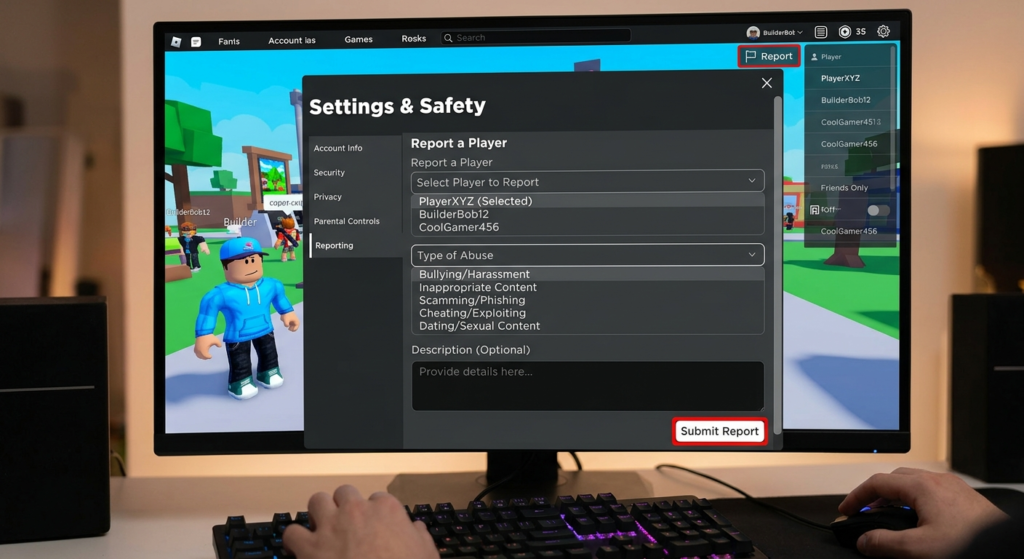
Use Roblox Reporting Tools
If another player behaves inappropriately, Roblox provides reporting features that allow users to report harmful behavior.
Players should report:
- Harassment.
- Threats.
- Inappropriate language.
- Attempts to obtain personal information.
Use Mute and Block Features
You do not have to communicate with every player.
If someone makes you uncomfortable:
- Mute their voice.
- Block the account.
- Leave the server if necessary.
These tools help create a safer gaming environment.
Supported Devices for Roblox Voice Chat
Roblox Voice Chat is available on multiple platforms, but the experience may vary depending on your device.
PC
PC users usually have the most control because they can use:
- Headsets.
- USB microphones.
- External audio devices.
A stable internet connection and updated audio drivers can improve performance.
Mobile Devices
Voice Chat also works on supported mobile devices.
For better results:
- Allow microphone permissions.
- Keep Roblox updated.
- Use headphones when possible.
- Close unnecessary apps.
Console Support
Availability on consoles may depend on Roblox updates and platform support.
Players should check the latest Roblox information for their specific device.
Improving Voice Chat Performance
If Voice Chat feels delayed or unstable, the issue may not always be your microphone.
Possible causes include:
- Weak internet connection.
- High network traffic.
- Outdated Roblox version.
- Device performance issues.
To improve performance:
- Use a stable Wi-Fi connection.
- Restart Roblox.
- Update your device.
- Close background applications.
Voice Chat Etiquette
Good communication improves the experience for everyone.
Recommended behavior:
- Speak respectfully.
- Avoid unnecessary shouting.
- Do not spam sounds.
- Respect other players.
- Keep conversations appropriate.
A positive community makes Roblox experiences more enjoyable.
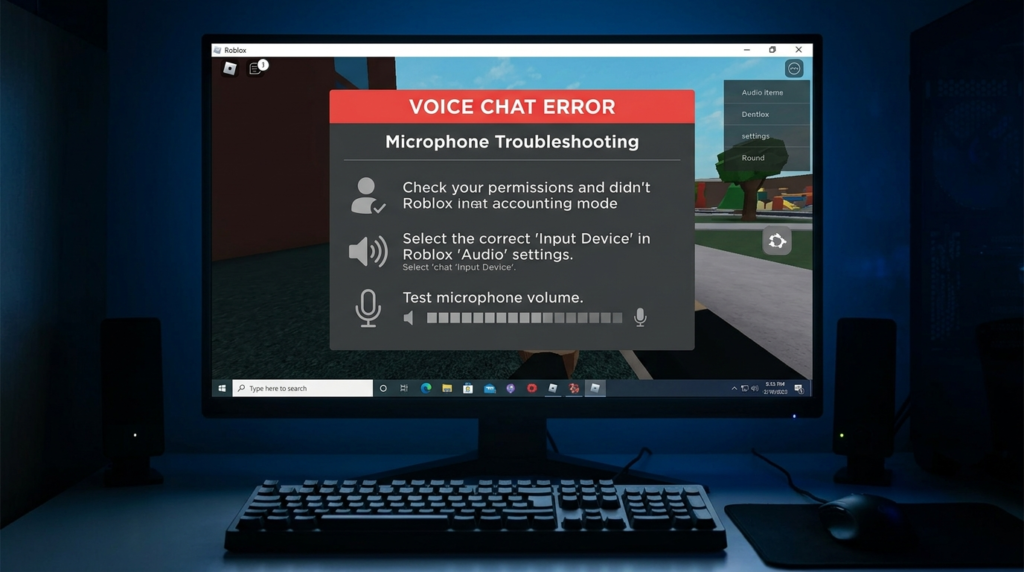
Common Roblox Voice Chat Problems and Solutions
Although Roblox Voice Chat is designed to work smoothly, some players may experience problems when trying to activate or use the feature.
Below are the most common issues and their possible solutions.
Voice Chat Option Is Missing
One of the most common problems is that the Voice Chat option does not appear in account settings.
Possible reasons include:
- The account does not meet eligibility requirements.
- Verification has not been completed.
- The feature is not available in your region.
- Roblox needs to be updated.
- The account settings need to refresh.
Possible solutions:
- Check that your Roblox account information is correct.
- Update the Roblox application.
- Sign out and sign back in.
- Check your communication settings again.
Microphone Is Not Working
If other players cannot hear you, the problem may be related to microphone permissions or device settings.
Try these steps:
- Make sure your microphone is connected.
- Check that Roblox has microphone permission.
- Select the correct input device.
- Restart Roblox.
- Test your microphone in another application.
For PC users, checking Windows microphone settings can often solve the problem.
For mobile users, make sure microphone access is enabled in your phone settings.
Voice Chat Has Low Quality or Delays
Poor audio quality can happen because of:
- Weak internet connection.
- Background applications.
- Device performance problems.
- Microphone quality.
To improve audio:
- Use a stable Wi-Fi connection.
- Close unnecessary apps.
- Use headphones if possible.
- Move closer to your router.
Voice Chat Icon Does Not Appear in Game
Even if Voice Chat is enabled, the microphone icon may not appear in every Roblox experience.
This usually happens because:
- The game does not support Spatial Voice.
- The feature is disabled by the developer.
- The account settings have not updated yet.
Try joining another Voice Chat supported experience to confirm whether the feature is working.
Roblox Voice Chat Not Working After Update
Roblox frequently releases updates that can change settings, permissions, or compatibility.
If Voice Chat stops working after an update:
- Update Roblox.
- Restart your device.
- Check microphone permissions.
- Wait for possible server-side fixes.
Frequently Asked Questions (FAQ)
What is Roblox Voice Chat?
Roblox Voice Chat, also known as Spatial Voice, is a feature that allows players to communicate using their microphones inside supported Roblox experiences.
Is Roblox Voice Chat free?
Yes, Voice Chat is a built-in Roblox feature and does not require a paid subscription.
Why can’t I see Voice Chat on my account?
The feature may not appear if your account does not meet Roblox requirements or if it is unavailable in your region.
Does every Roblox game support Voice Chat?
No. Developers must enable Spatial Voice in their own experiences.
Can I use Roblox Voice Chat on mobile?
Yes, Voice Chat can work on supported mobile devices if the account and device meet the necessary requirements.
Can I disable Voice Chat?
Yes. Players can manage communication settings and disable voice communication when needed.
Why can’t other players hear me?
Common reasons include:
- Microphone permission is disabled.
- Wrong input device selected.
- Microphone problems.
- Connection issues.
Does Roblox record Voice Chat?
Roblox has safety systems and moderation tools designed to maintain a safe environment. Players should always follow Roblox community guidelines when using communication features.
Can children use Roblox Voice Chat?
Voice Chat availability depends on Roblox account requirements and safety settings. Parents should review privacy controls and communication options.
How do I fix Roblox microphone problems?
Check microphone permissions, update Roblox, restart your device, and verify your audio settings.
Can I use headphones with Roblox Voice Chat?
Yes. Headphones with a microphone usually provide better sound quality and reduce background noise.
Why is my Voice Chat delayed?
Possible causes include:
- Internet connection problems.
- Network congestion.
- Device performance issues.
Does Voice Chat work on all devices?
Availability depends on Roblox support, account eligibility, and device compatibility.
How do I report inappropriate Voice Chat behavior?
Use Roblox reporting tools to report players who violate community rules.
Can I mute other players?
Yes. Roblox provides options to mute users when you do not want to hear their communication.
Final Verdict
Roblox Voice Chat has changed the way players communicate by making multiplayer experiences more interactive and immersive. Instead of relying only on text messages, players can now coordinate, socialize, and build stronger connections through real-time communication.
However, getting the best experience requires proper setup. Enabling microphone permissions, using suitable audio settings, maintaining privacy controls, and following safety guidelines are essential steps for enjoying Voice Chat responsibly.
Whether you play social games, roleplay experiences, or competitive Roblox titles, understanding how Voice Chat works can help you communicate more effectively and enjoy a smoother gameplay experience.
This guide covered everything from enabling Roblox Voice Chat and improving microphone quality to fixing common problems and staying safe while communicating online.